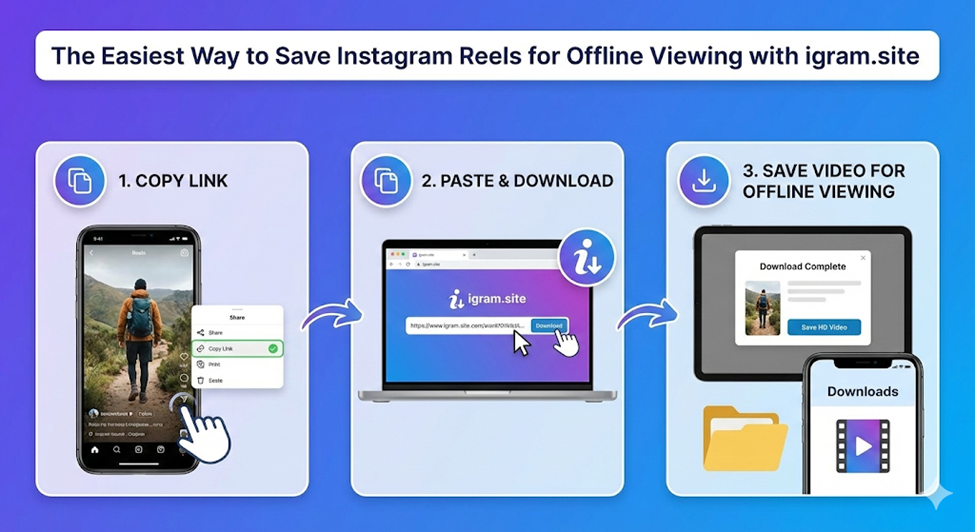
The Easiest Way to Save Instagram Reels for Offline Viewing with igram.site
We have all been there. You are sitting on a plane, about to take off. The cabin crew announces that it’s time to switch devices to airplane mode. You panic-scrolled through Instagram for the last 15 minutes, hoping to find that one 10-minute recipe video or that hilarious comedy sketch to watch during the flight, but now the connection is cut.
Or maybe you are a commuter. You know exactly where the “dead zone” is on your subway line—that frustration when the Reel freezes right before the punchline because the train went underground.
In a world that is constantly online, we often forget how dependent we are on a stable internet connection until it’s gone. Instagram is designed to be a streaming platform; it wants you live, connected, and consuming data. It doesn’t natively offer a way to take that content with you into the offline world.
This is why learning how to save Instagram Reels for offline viewing is a digital survival skill. Whether you want to curate a playlist of workout videos for a gym with spotty Wi-Fi, keep a folder of recipes for a kitchen with no signal, or just save your data plan from exhaustion, you need a reliable tool.
That tool is igram.site.
In this guide, we are going to explore why taking your Reels offline is a game-changer and show you exactly how to do it in seconds, without watermarks, quality loss, or headaches.
The “Saved” Folder Trap vs. True Offline Access
First, let’s clear up a common misconception. Many users think that hitting the little “flag” icon on Instagram (the “Save” button) means they have saved the video.
They haven’t.
When you use Instagram’s native “Save” feature, you are essentially just bookmarking a link. You are telling Instagram, “Remember this location for me.” But if the original creator deletes the video? It’s gone from your Saved folder. If your internet goes out? You can’t watch it. If your account gets banned or hacked? You lose access to everything.
True offline access means having the actual MP4 file stored on your device’s hard drive or camera roll. It means you own the file. You can watch it in a video player without opening the Instagram app. You can text it to a friend who doesn’t have social media. You can watch it on a loop without using a single kilobyte of data.
This distinction is crucial. Bookmarks are rented; downloads are owned.
See also: Hire Dedicated Developers: A Technical Guide for Startups and Enterprises
Why Screen Recording Just Doesn’t Cut It
Before discovering dedicated tools, most people try to solve the offline problem by screen recording. On the surface, it seems easy enough. You swipe down on your iPhone or Android, hit “Record,” and play the Reel.
But if you care about quality, this is a nightmare. Here is why screen recording is the enemy of a good viewing experience:
1. The “Clutter” Factor
When you screen record, you aren’t just recording the video. You are recording the heart icon, the comment bubble, the “Send” plane, the creator’s username, the caption text overlay, and your own phone’s battery and clock icons. The video itself is buried under a layer of interface junk.
2. The Audio Sync Issues
Have you ever watched a screen-recorded Reel where the lips move a split second after the voice speaks? Screen recording software often struggles to keep audio perfectly synced with high-frame-rate video, leading to a frustrating viewing experience.
3. Double Compression
Instagram compresses the video to stream it to you. Your phone then compresses it again to save the screen recording. The result? A blocky, pixelated video that looks terrible on anything larger than a phone screen.
Using a specialized Instagram video downloader like igram.site solves all of these problems instantly. It bypasses the screen and goes straight to the source file.
Why igram.site is Your Best Bet for Offline Viewing
There are dozens of sites out there, but igram.site has quietly become the go-to for power users. It’s not about having a million flashy buttons; it’s about doing one thing perfectly.
Here are the specific features that make it the ideal companion for offline viewing:
Original Quality (HD & 4K)
If a travel vlogger uploads a stunning drone shot in 4K, igram.site grabs the 4K file. It doesn’t downscale it. This is massive for people who want to watch content on iPads or laptops, where low quality becomes painfully obvious.
Clean Audio Extraction
For Reels, audio is half the experience. igram.site extracts the original AAC audio track. This means if you are saving a music tutorial or a dance challenge, the sound is crisp, clear, and perfectly timed.
The “No-Login” Safety Net
This is the most critical feature. You do not need to log in. Many apps demand your Instagram password to “unlock” downloads. This is a security risk. igram.site works anonymously. You are essentially a ghost; you come in, get the file, and leave, with zero risk to your personal account.
Universal Compatibility
It doesn’t matter if you are an Apple loyalist, an Android user, or a Windows die-hard. Because igram.site is browser-based, it works on literally any device that can access the internet.
Step-by-Step Guide: Saving Reels on Mobile
Let’s get practical. You are on your phone, you have five minutes before your flight, and you want to save a few Reels. Here is the workflow.
Step 1: Copy the Reel Link
Open the Instagram app and find the Reel you want to keep. Tap the Paper Airplane icon (usually on the right side of the screen) or the Three Dots (…) at the bottom right. In the menu that pops up, tap “Copy Link”.
Step 2: Open igram.site
Switch over to your mobile browser (Safari, Chrome, Samsung Internet, etc.) and type in igram.site.
Step 3: Paste and Tap Download
You will see a text box. Paste your link there. Tap the “Download” button.
Step 4: Save to Camera Roll
After a second of processing, you will see a preview of your Reel. Tap the “Download .mp4” button.
- On Android: The file will usually download straight to your Gallery or “Downloads” folder.
- On iPhone (iOS): The file will go to the “Files” app first. To move it to your photos, open the “Files” app, tap the video, tap the “Share” icon (bottom left), and select “Save Video.”
Now, you can put your phone in Airplane Mode, open your Photos app, and watch the video perfectly.
Step-by-Step Guide: Saving Reels on Desktop
Maybe you are a video editor building a mood board, or you just prefer browsing on a big screen. The desktop process is even faster.
Step 1: Get the URL
Go to Instagram.com on your computer. Click on the Reel you want to open it. Highlight the URL in the address bar at the top of your browser and press Ctrl+C (Windows) or Cmd+C (Mac).
Step 2: Paste on igram.site
Open a new tab and go to igram.site. Paste the URL (Ctrl+V or Cmd+V) into the search box.
Step 3: Download to Hard Drive
Click Download. When the button appears, click it. The MP4 file will save to your computer’s “Downloads” folder. You can now drag and drop this file into a folder, put it on a USB stick, or watch it on a large monitor without any buffering.
Advanced Use Cases: Who Needs This?
You might be thinking, “This sounds great, but do I really need to download videos?” The answer depends on how you use the internet. Here are three scenarios where offline access is essential.
1. The Fitness Enthusiast
Gyms are notorious for having terrible signal. You don’t want to be standing there, buffering, waiting for the next set of instructions in a workout Reel. By downloading your workout routine beforehand, you can flow through your session without interruption.
2. The Kitchen Cook
Following a recipe from a Reel is hard. It loops too fast, and if your hands are covered in flour, you don’t want to keep tapping the screen to un-pause it. By downloading the Reel, you can open it in your phone’s native video player, which usually allows you to scrub through the video slowly or pause it easily while you chop vegetables.
3. The Digital Parent
If you have kids, you know that a funny animal video or a mesmerizing satisfying video can prevent a meltdown in a car ride. But you don’t want to hand your child an unlocked phone with open internet access. Downloading a few safe, approved Reels into a folder allows you to give them entertainment without the risk of them clicking on something they shouldn’t.
Addressing the “Private Account” Limitation
One important thing to note: igram.site respects privacy settings.
If you try to download a Reel from a Private Account (an account where you have to request to follow them), the tool will likely give you an error. This is a feature, not a bug.
Since igram.site does not ask for your login details, it has no way of knowing that you are allowed to see that private post. It views the internet as a public user would. This ensures that private content remains private. You can only download Instagram reels from public accounts—which covers the vast majority of viral content, celebrity posts, and brand pages.
Is This Legal? A Quick Note on Responsibility
We get asked this often: “Is it okay to download these?”
The rule of thumb is Personal Use vs. Commercial Use.
- Okay: Downloading a Reel to watch offline, to keep as a memory, or to use as a reference for your own learning. This generally falls under “fair use.”
- Not Okay: Downloading someone else’s viral Reel and re-uploading it to your own account to get likes, or using it in a TV commercial without paying them.
Think of igram.site as a VCR for the modern age. You are recording a show to watch it later, which is fine. Just don’t sell bootleg copies of the tape.
Conclusion: Take Control of Your Content
The internet is becoming more ephemeral. Stories disappear. Accounts get deleted. Algorithms change what you see.
Relying entirely on a cloud-based app to hold your memories and interests is risky. By using igram.site, you are taking a small but significant step toward owning your digital experience. You are ensuring that bad signal, a long flight, or a deleted account doesn’t stand between you and the content you enjoy.
So, the next time you see a Reel that you know you’ll want to watch again, don’t just “Save” it to that digital graveyard in the app. Copy the link, head to igram.site, and keep it offline, forever. It’s fast, it’s free, and it’s the smartest way to scroll.